Your first working view
Getting started
Sky Map 2000 needs two things from you: where you are and when you are looking. Give it both and the app stops being a generic star chart and starts describing the sky above your actual spot at that exact moment. The first walk-through takes about five minutes.
Before you begin
Open Sky Map 2000 in a current browser. For this first session, choose a place you can step outside from, even if trees or roofs cover part of the horizon. The map can tell you exactly where an object sits geometrically; only your surroundings will tell you whether you can see it.
-
Open the sky map
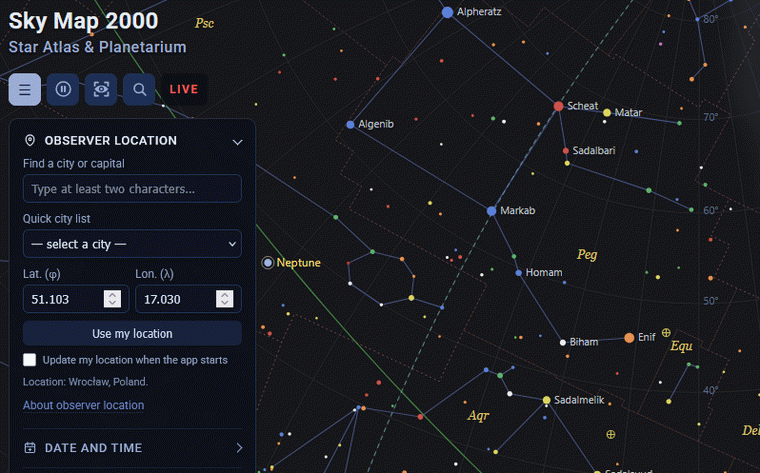
Start at the main map. The dark view is the live planetarium; the panel on the left holds the controls you will use first. On a small screen the panel starts collapsed, so tap the menu button to open it.
Open Sky Map 2000 -
Set your observing location
Open Observer location. Pick a city from the quick list, search the local catalogue, enter latitude and longitude, or select Use my location. Device location needs browser permission and a secure connection. No method is more correct than another; what matters is that it represents where you actually plan to look from.
-
Choose a date and time
Open Date and time and pick Live, or press the play button labelled Start live sky, to match the current moment. To plan ahead, choose the date and local time you expect to observe. The map recomputes the positions of the Sun, Moon and planets and rotates the sky for that moment.
-
Use the horizon-based view
For your first outdoor session, keep Horizontal selected under Coordinate system. This mode describes position as altitude above the horizon and azimuth around it, using the location you chose. It is the fastest way to connect what is on the screen with a direction outside.
-
Make the map readable
Open Objects and layers and turn on only what helps you. Constellation lines and names are a good starting point. Add the horizon, planets or deep-sky objects when they answer a question. A crowded map is often slower to read than a spare one.
-
Find one target
Use the search button to look for something familiar: the Moon, Jupiter, the Pleiades, Orion. Select a result to centre the map and open its data card. If the card says the target is below the horizon, it may still be worth waiting for a later rise, but it is not visible from your site right now.
A simple first-night check
If you are new to observing, wait for a clear evening and do this in order: set your real location, pick Live, keep Horizontal view, turn on constellation lines and names, then search for the Moon or a bright planet. Compare the direction and height on the screen with the sky outside. Once that link feels natural, open the Observation Planner for a wider list of targets.
After your first view, learn the map controls, pick only the layers you need in layers and labels, or use search and object cards to find a target.
If the view does not match the sky
Check the location, date, time and coordinate-system setting first. A city with a similar name, a stray date, or Equatorial mode instead of Horizontal can make a perfectly valid map look wrong when you are trying to match the horizon. Remember too that the screen can show objects below the horizon if you search for them; the object card labels that clearly.
What to read next
Read the introduction for a fuller account of the data and the limits behind the map. The next guides cover observer location, date and time, coordinate systems, layers, object cards and the observation planner in more detail.