Use the map
Map controls and interface tools
This page is a working inventory of every visible control in Sky Map 2000. Keep it open alongside the topic guides when you want to know exactly what a button, gesture or readout does.
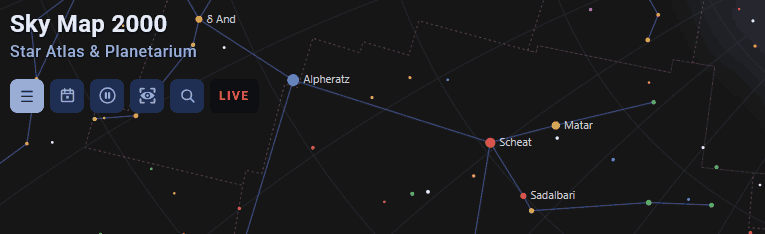
Top bar: panels, Today, live sky, planner and search
The menu button opens or closes the main left control panel; the app remembers that preference in your current browser. The telescope icon opens Astronomy tools, a second left panel for Today, the Observation Planner and the 3D Solar System. Only one of the two panels is open at a time, so the map stays clear.
The sunrise-and-horizon icon opens Today, a local astronomical briefing for the current day. It temporarily replaces the active panel with sunrise and sunset, Moon phase and visibility, twilight and astronomical darkness, the best Moon-free observing window, visible planets, tonight’s highlights and a short location-aware sky note for travellers. The play button starts and stops Live, which follows the current time and shows a LIVE status label near the readouts.
The eye-shaped button opens What can I see?, the Observation Planner. The planner is also available in Astronomy tools. Use Today for a quick picture of the whole evening, then use the planner for a longer, target-by-target shortlist. The magnifying-glass button opens object search; pressing / opens the same field when you are not typing in another control. Press Escape to close an open information card before closing its parent panel.
Move, zoom and select on the sky map
Drag the map with a mouse or one finger to move the centre of the view. In Horizontal mode you move through azimuth and altitude; in Equatorial mode through right ascension and declination. Scroll with a mouse wheel or pinch with two fingers to zoom; the field of view stays within a usable range, from a 2° close-up to a 220° wide view.
Click or tap a star, deep-sky object, Solar System body or meteor radiant to select it and open its data card. Tap an empty area to clear the selection.
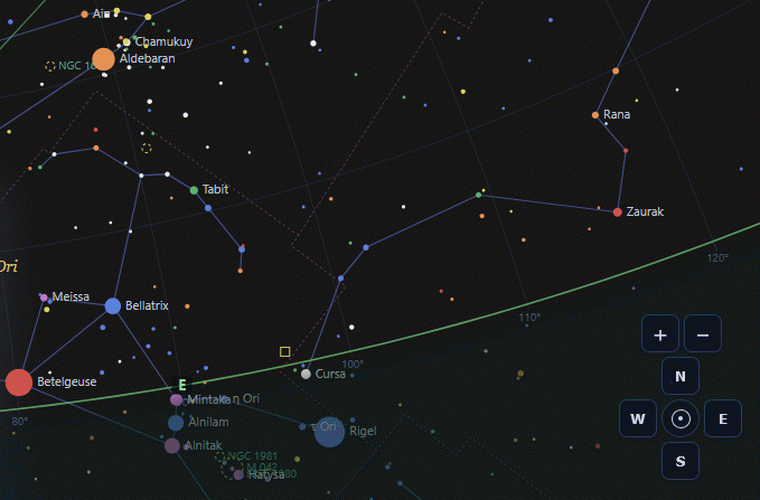
Two pairs of + and − buttons sit next to the direction pad. The upper pair, labelled Map zoom, changes the field of view in the same way as the scroll wheel. The lower pair, labelled Number of stars shown, changes how many faint stars are drawn: each press moves the faint-star cut-off by half a magnitude, up to three magnitudes below or above the starting density. The four-point pad jumps a horizontal view to north, east, south or west; its centre button aims at the zenith.
Readouts at the bottom of the map
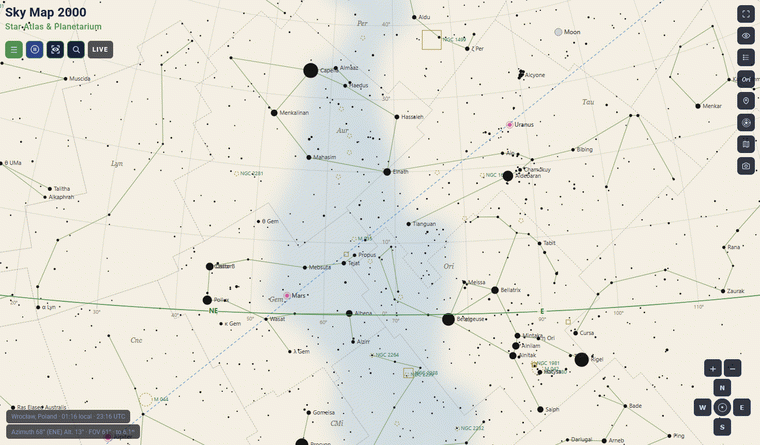
The location readout states the active city or coordinates, local time and UTC. The view readout changes with the coordinate mode: Horizontal shows azimuth, compass direction, altitude, field of view and limiting magnitude; Equatorial shows centre RA, centre declination, field of view and limiting magnitude. These values describe the map centre, not a selected object.
Display style controls
Spectral colour
Stars are coloured by spectral class, from hot blue O and B types through yellow G stars to cool orange-red K and M stars. Reach for it when you want to compare stellar temperature at a glance.
Star magnitude
Star size follows apparent visual magnitude; smaller magnitude values are the brighter stars. This is the default and works well for a clean brightness-led display.
Stars shown
Use − to show fewer faint stars and + to show more, in half-magnitude steps up to three magnitudes below or above the default. A simpler map is often easier to read at first; a denser map earns its place when you are tracing a faint pattern or exploring a rich field. The setting changes only how many stars are drawn; it does not alter object cards or position calculations.
Star Atlas mode
Switches to a warm, light, print-like atlas display with dark symbols. The right-side atlas button is a shortcut to the same mode. It suits daylight reference and printable charts; keep the regular dark view or Night Vision outdoors at night.
Right-side toolbar
- Fullscreen asks the browser to display the map fullscreen. Some browsers or devices refuse this.
- Night Vision applies a deep-red interface treatment for use in the dark. Lower device brightness as well; the mode helps, but does not guarantee preserved dark adaptation.
- Map key & object guide opens the legend for spectral colours, deep-sky symbols and the magnitude scale.
- Constellation abbreviations shows the IAU three-letter codes alongside the full Latin constellation names.
- Use my location is the quick version of the location-panel button. The browser asks for permission and the app updates the observing position if you grant it.
- Device compass aligns a Horizontal map with the direction your phone or tablet is facing. It needs Motion & Orientation permission and a compatible device; see the device compass guide.
- Share opens a dialog with a Copy link button and one-tap links to X, Facebook, Bluesky and email, so you can send someone a working link to the app.
- Star Atlas toggles the light atlas display.
- Camera saves the current map as a PNG with observing context in the image metadata. See night vision and export.
What the left panel changes
Observer location sets place and time zone through city search, quick list, coordinates or device location. Date and time sets a specific moment, follows Live, or runs ×60, ×600 and ×3600 time-lapse; Stop ends Live or time-lapse. Star visualization controls star colour, magnitude style, Star Atlas mode and the number of faint stars drawn. Coordinate system and Objects and layers change the view itself. Use the neighbouring Astronomy tools panel for Today, the Observation Planner and the 3D Solar System. Each section links to a focused guide from the documentation home.
For the meaning behind the controls, set an observer location, choose a coordinate system, consult the astronomy glossary and read the object cards and map key.